top of page

How to publish an ebook
1.Signup & Login
If you want to publish an ebook, you need to signup and login. To initiate a signup or login,


After login, you can add an ebook like below.
2.Upload an ebook
2.1 Click your user image.

2.2 Click Ebook Button

2.3 Click "+" to add your original ebook. Please note that selling an ebook that you do not create or have rights to is prohibited.

2.4 Add title, cover image, book pdf, description, price. Set up landscape or portrait flag based on your book setting. Save it for later. Click "Publish" if you are ready. Once you publish, you can now sell your ebook.

2.2 Click Ebook Button
2.3 Click "+" to add your original ebook. Please note that selling an ebook that you do not create or have rights to is prohibited.
2.4 Add title, cover image, book pdf, description, price. Set up landscape or portrait flag based on your book setting. Save it for later. Click "Publish" if you are ready. Once you publish, you can now sell your ebook.
For each sale, a 10% platform fee will be applied, along with a data charge of $0.15 per 1MB of file size. The file size includes both the book PDF and the cover image. You retain full rights to publish your book on other platforms. By clicking "Publish", you agree to these terms.

3.How to check your sales status.
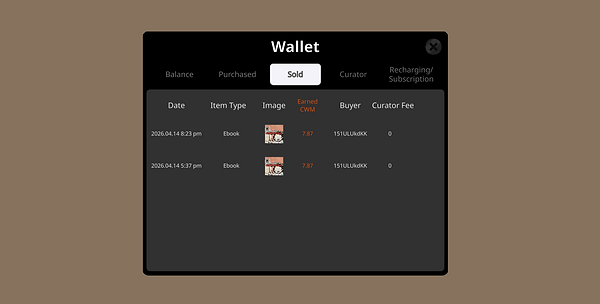
3.1 Click your wallet

3.2 Click Sold Tab
Sold items are listed with item type == "Ebook".
bottom of page